 IUX
IUX
 Exness
 Vantage
 XM
XM
 ICMarkets
 LiteFinance
 Moneta
 Tickmill
 South Africa (9)
 India (9)
 Bangladesh (12)
 Germany (9)
 Thailand (10)
 Philippines (9)
 Nigeria (10)
 Vietnam (10)
 Malaysia (9)





How to Log in to XM’s MT4/MT5?



Share:
Share:
Broker
4 min read
This guide is your step-by-step roadmap to logging in to your XM trading account on the MetaTrader 4 (MT4) or MetaTrader 5 (MT5) platforms. We'll provide a clear, easy-to-follow process, covering everything from locating your login credentials to connecting on desktop, web, and mobile devices. Get ready to access the markets and start trading.
A quick glimpse of the login process:
- Step 1: Open your MT4 or MT5 platform (desktop, web, or mobile app).
- Step 2: Click on "File" in the top menu and select "Login to Trading Account" (or "Manage Accounts" on the mobile app and then the "+" icon).
- Step 3: Enter your Account ID, password, and select the correct server from the dropdown list.
- Step 4: Click "OK" or "Sign In" to connect to your account and start trading.
Log in Process of XM's MT4/MT5 Account
If you have never used XM before, start by registering for an account. It will only take a few minutes and ask for basic personal and financial information.
1. Preparing to Communicate
Before you kickstart login process, you need to collect some important details.
Gather Required Information:
- The email you used during registration will receive your XM Login ID (MT4/MT5 account number).
- Password is case sensitive and was created during registration.
- XM Server Name: will be sent as well. For example XMGlobal-Real 7, XMTrading-Real 25 etc.
- Platform Type: Make sure you are using either MT4 or MT5, the MetaTrader versions you selected when you created your account.
Accessing Your Login Credentials:
Enter your registered email and password in the XM Members Area to get your login ID and server information back. Also you can:
- View account info
- Deposit or withdraw
- Change password
- Download platforms
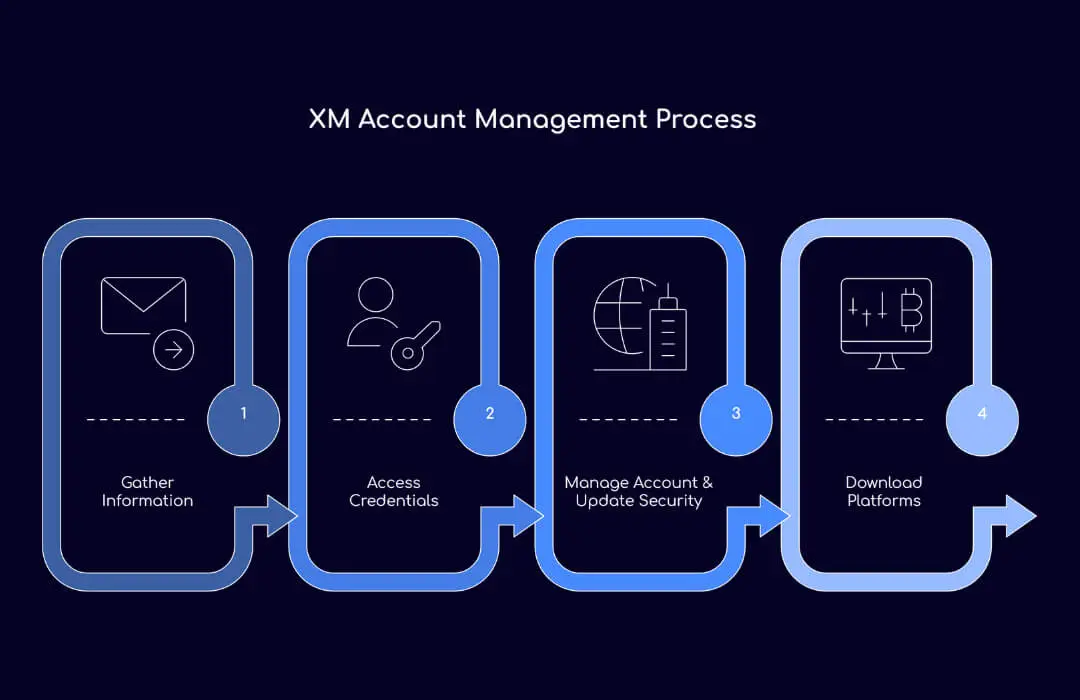
2. Download and Installing MT4 and MT5
XM offers MT4 and MT5 for multiple platforms including Windows, macOS, Android and iOS.
For Windows:
- Go to XM MT4 Download Page.
- Click download and install the .exe file.
- Follow the setup instructions and run the application.
For Mac:
- Go to XM Mac Download Page
- Download and install the installer
Note: Additional permissions might be required for macOS Catalina and later.
For iOS and Android mobile devices:
- Go to Google Play or App Store.
- Search for "MetaTrader 4" or "MetaTrader 5".
- Download and install the app.
- Launch the app and login (explained below).
3. Login to MT4/MT5
Login is easy once installed but must be done correctly to connect.
Launch the installed MT4/MT5 platform.
Access the Login Window:
- Desktop: File > Login to Trade Account
- Mobile: Settings > New Account > Login to an existing account
Entering Your Credentials:
- Login ID: Your XM account number
- Password: Created during XM registration
- Server Name: Must be exactly as provided by XM
You will see your account balance and can start trading once logged in. Selecting the wrong server and platform type (MT4 vs MT5) will result in login errors so be careful.
Troubleshooting Common Login Issues
Sometimes even seasoned traders have login issues. Here are a few:
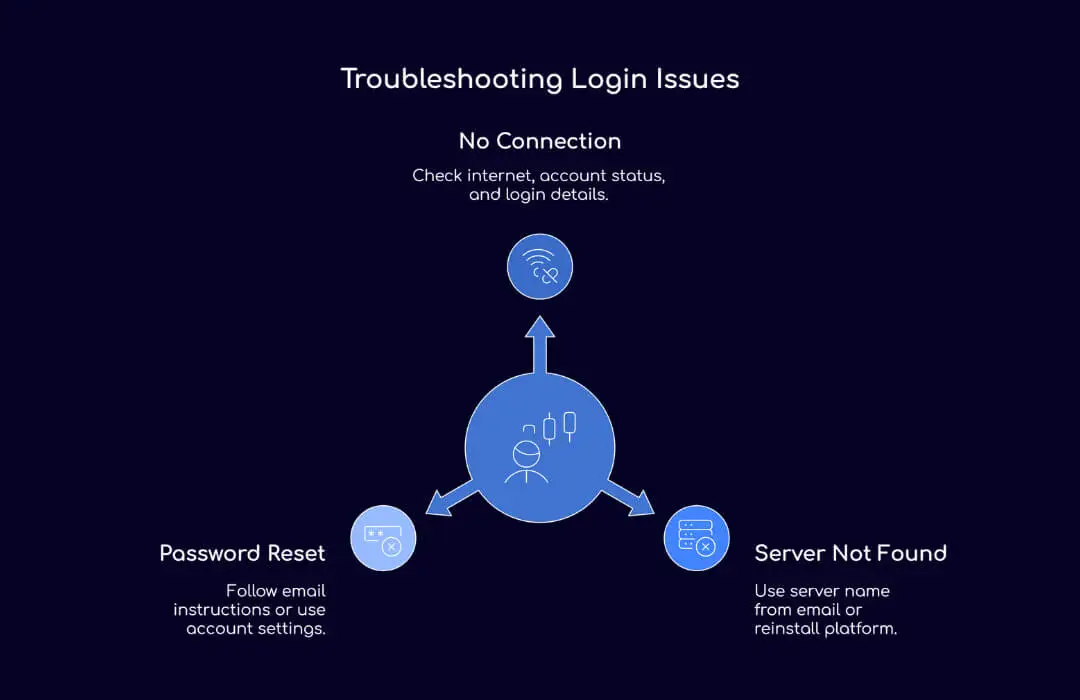
No Connection or Invalid Account Errors
- Check your internet connection.
- Check your account is active.
- Check your account is funded.
- Check your login details.
Connection Problems: No Server Found
- Use the server name from your XM welcome email.
- If the server is not there click “Add New Broker” and type “XM” to reload the list.
- Reinstall the platform can solve server issues.
Password Reset
If you can’t remember your password:
- Visit XM Password Reset Page
- Enter the email you used to register.
- Create a new password as per the email instructions.
In the XM Members Area you can also change your password by going to Account Settings > Change Password.
XM Demo Account vs Real Account Login
Demo account:
For newbies. XM gives you a free demo account with virtual money. You will receive an email with your demo login details after registration.
Real Account:
Funded with real money, this account is for live trading. Use the login details from your actual account welcome email.
And always check to be sure you are logging into the correct server and account type.
XM Partner Portal Login
If you are an XM affiliate or an Introducing Broker (IB), use the XM Partner Login to access your partner dashboard.
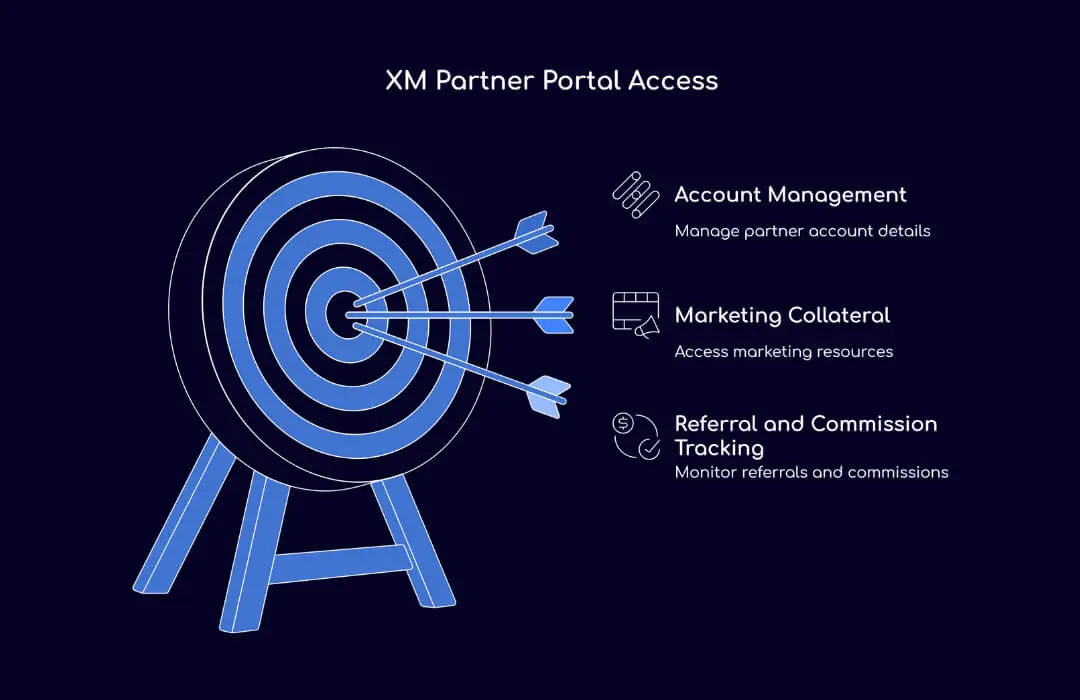
Here you can:
- Track referrals and commissions
- Get marketing collateral
- Manage your partner’s account details
Make sure the login credentials you are using are for your partner and not your trading account.
Visit the XM Support Center for more tutorials.
Are You Ready To Start Trading? Sign up for a real account or try a demo account today.
Explore More XM Related Blogs
F. Nathan
Felix Nathan is a professional trader, market analyst, and business development executive with over a decade of experience in the forex and financial markets. Felix specializes in providing actionable market insights, trading strategies, and risk man...